

When it comes to using a personal knowledge management system, it’s so tempting for any of us to jump right in and pick the best-looking workflow that we see on the internet. But the more I use Obsidian, the clearer it is to me how flawed this strategy really is.
The reason is that a workflow—if it’s done right—is designed to solve a specific problem. So, if you just adopt a workflow without hoping to solve any problems, that’s exactly what’s going to happen. You’ll not solve any problems. And over time, this workflow will become its own problem.
You started with zero problems and now you have one!
That said, a well-thought-out Obsidian workflow can do wonders in the productivity department. And there’s only one way to make such a workflow: starting with a problem and, equally importantly, creating a workflow that matches how your mind works and how you solve problems.
This is what this blog post is about.
A sample workflow
Here’s a sample Obsidian workflow based on everything I talked about above.
Pick one task that you need to do repeatedly. For this example, let’s take “publishing an article online”. Now, with the task in mind, work backwards.
Here are some tasks that come before the final product in reverse order:
- Final draft
- First draft
- An outline
- A collection of ideas
- Books, research papers, YouTube videos, highlights from the things I’ve read, etc.
Now, I see the whole workflow:
Sources → notes → ideas → outline → draft → edit → publication
The next step is to identify where I need more efficiency, where I need automation, where I struggle more and end up searching endlessly in a loop, and where stuff gets lost over time.
These are the places where Obsidian can really help me. But how?
Let’s go one by one.
It’s really hard to keep and connect information coming from different sources
One solution to this is to use the Obsidian Web Clipper plugin, combined with a tag system like this:
- source/video
- source/book
- source/article
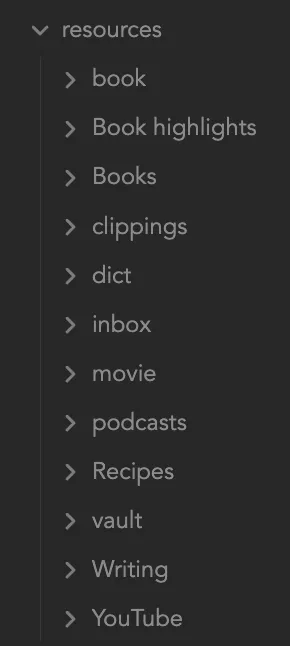
With the Web Clipper, I can also set this up so that all of these notes end up in one folder called “resources”. On the note itself, I could have a property (“multi select”) called “related” to connect different resources to a single idea.
I need a place to write my first draft, edit and then finally polish it, and then to find it later
For this, I could create a new note in Obsidian in a folder named “blog posts”, so I can always find it later. To add another layer of discovery, I can create a tag (blog-posts). To categorize different types of articles, I can create nested tags like: blog-post/obsidian, blog-post/book-reviews, blog-post/newsletter.
Now I’m all set to write the first draft. Having done the all the necessary research at this point, all I have to do is open up the relevant notes (from the “resources” folder) ones in another pane and write my first draft.
I spend too much time creating and moving notes to folders
The time it takes to create and move notes and add metadata—like tags and nested tags—could be only a couple of seconds. But when I do this over and over for a long time, it adds up really quickly.
And this time does not account for anything productive. It does not add any value. So I need to get rid of that.
This is where the automation features of Obsidian really come in handy. To do this, I’d use two plugins: Templater and QuickAdd.
I can use Templater to create a reusable template for blog posts with the above-mentioned tags and properties, and then use QuickAdd to call it when needed. This means I don’t even need to lift my hands from the keyboard for the entire note creation process.
It takes about 2–3 seconds for all this now. If this workflow were not in place, it would take more than 20 seconds.
Big difference!
I need to see what I’m working on in my operating centre
My operating centre of choice in Obsidian is the daily note, which is a native plugin. But this could be any page of choice.
I like the daily note because of its dynamic nature. It progresses over time, so it’s always in sync with what I’m working on now, or “these days”.
To see what I’m working on, for example, the blog posts that I’m wring—I could use the plugin “Dataview“. For example, after installing Dataview, I can write some simple code and embed it in my daily note like this to see the posts I’m working on.
This is the actual code embedded in my daily note:
table
WHERE contains(tags, "arunak/blog_post")
WHERE contains(status, "in progress")
WHERE file.name !="arunak"
sort date desc
Conclusion
Even though this thought process seems simple to follow, it takes some doing to figure out what works for you. There will inevitably be some trial and error.
But as mentioned above, when one such workflow is in place, the next one takes less time, because now you know how your mind really works.
And a system built like this is the only one that will work for you, not the other way around.